Everything on your page so far stays on your page.
Today you add something different: words a reader can click to go somewhere else on the internet.
By the end of the lesson your page will have:
- a heading for a new part
- a sentence saying what the part is
- two links a reader can click
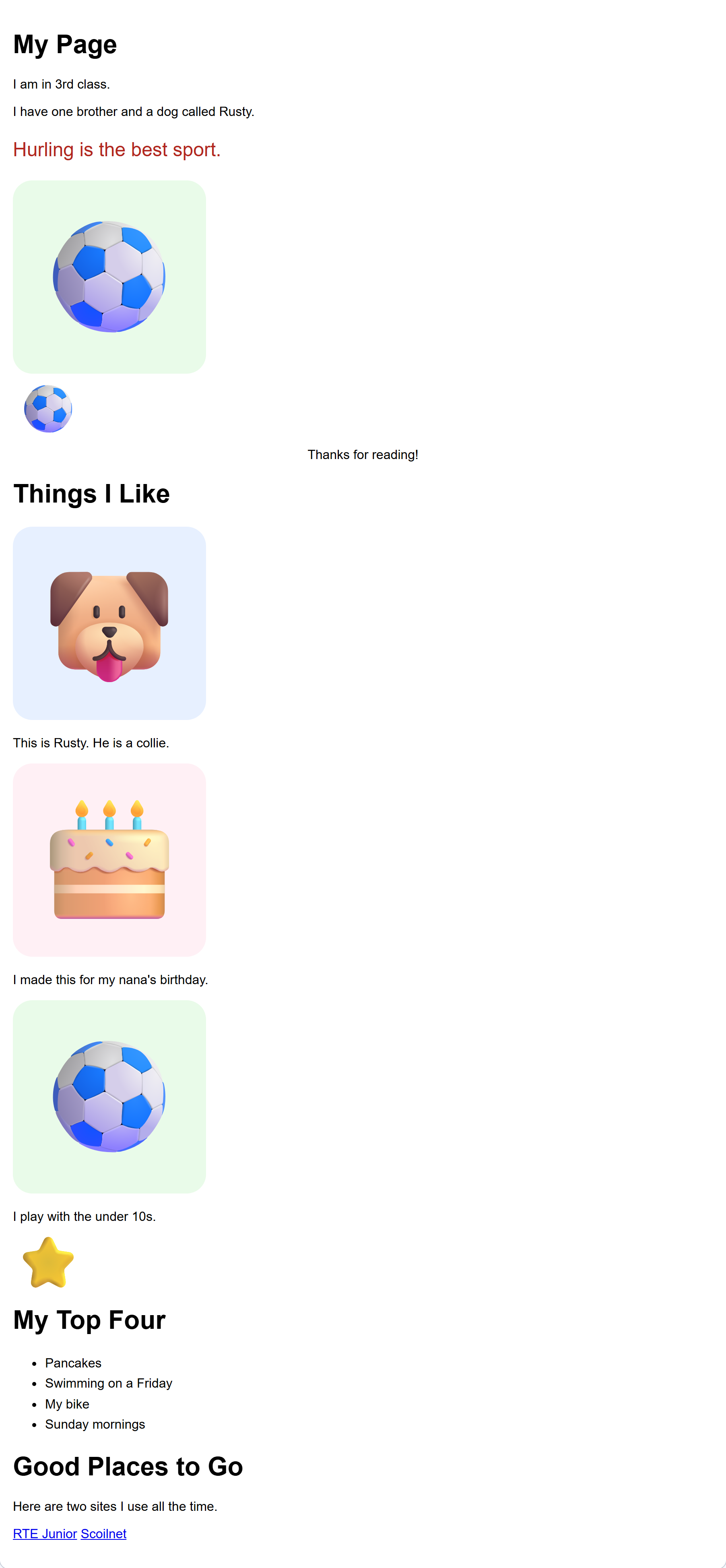
Three addresses are already printed on the pupil screen at step 6: gaa.ie, met.ie and dublinzoo.ie. Nothing needs preparing for the lesson to run.
If the class has sites it already uses, put two or three on the board instead, kept short so the typing stays quick.
A link block needs two things from you.
- The words a reader sees and clicks.
- The address of the place it goes to.
An address starts with https. If it does not, the link will not work.
Good words tell a reader where they are going. Click here does not.
Two things, and the words matter as much as the address. Ask the class what is wrong with a page full of links that all say click here.
The link block is in the Links and buttons group, not Content.
Your links need a part of the page to live in.
This is the block you need:
{"blocks": {"languageVersion": 0, "blocks": [{"type": "wp_heading", "fields": {"TEXT": "Good Places to Go", "COLOUR": "default", "SIZE": "normal", "ALIGN": "left"}}]}}- Click Content on the left.
- Scroll to the bottom of your blocks.
- Drag a heading block to the very bottom.
- Click its white box and type something like Good Places to Go.
Check: your new heading is at the very bottom of the page.
Interactive activity
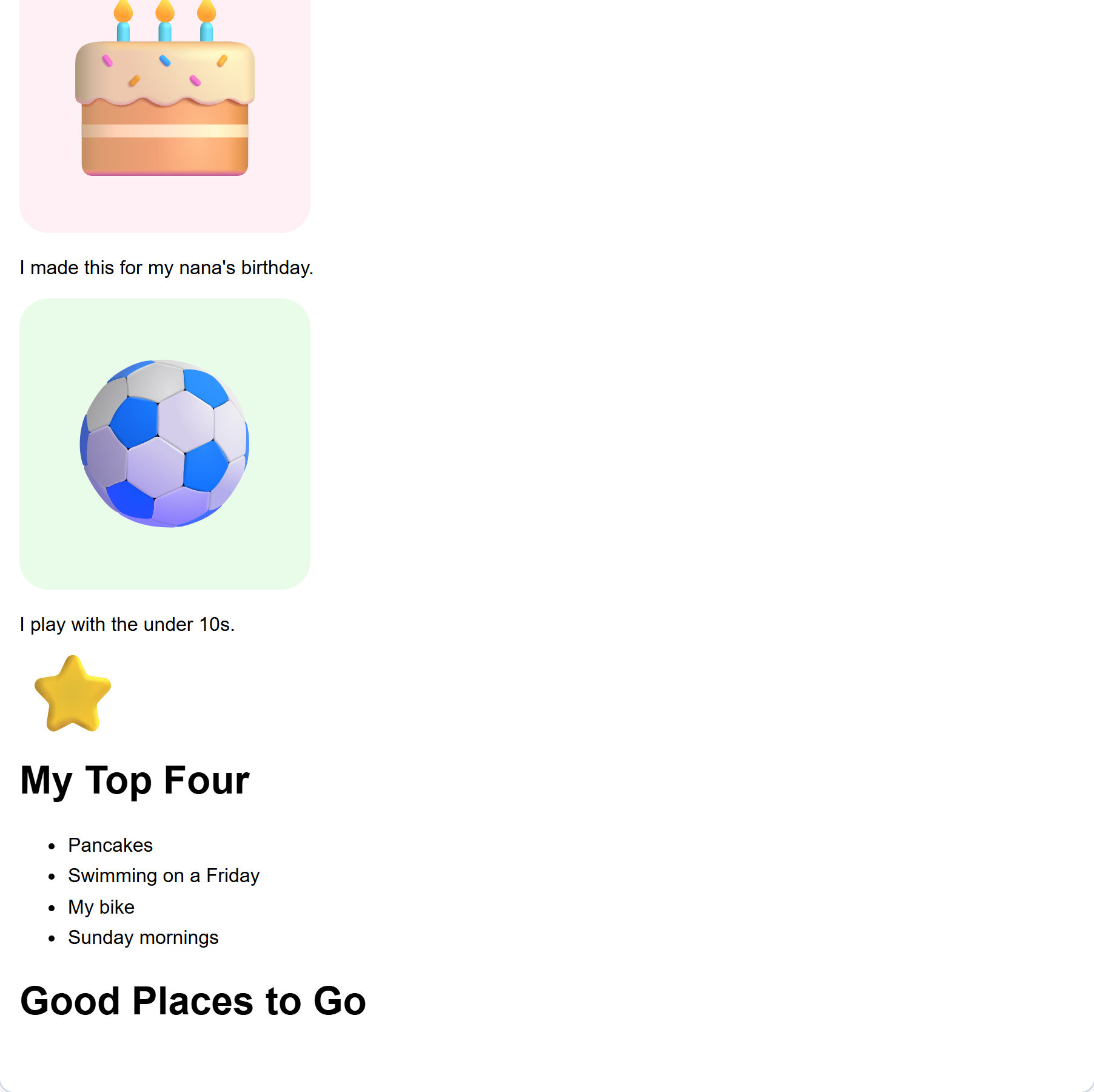
Third time doing this, so it should take a minute. It gets everyone to the bottom of their blocks ready for the links.
One sentence to say what these places are.
This is the block you need:
{"blocks": {"languageVersion": 0, "blocks": [{"type": "wp_text", "fields": {"TEXT": "Here are two sites I use all the time.", "COLOUR": "default", "SIZE": "normal", "ALIGN": "left"}}]}}- Click Content.
- Drag a text block under your new heading.
- Write one sentence saying what they are and why you like them.
- Click Your web page.
Check: your sentence sits under the new heading.
Interactive activity
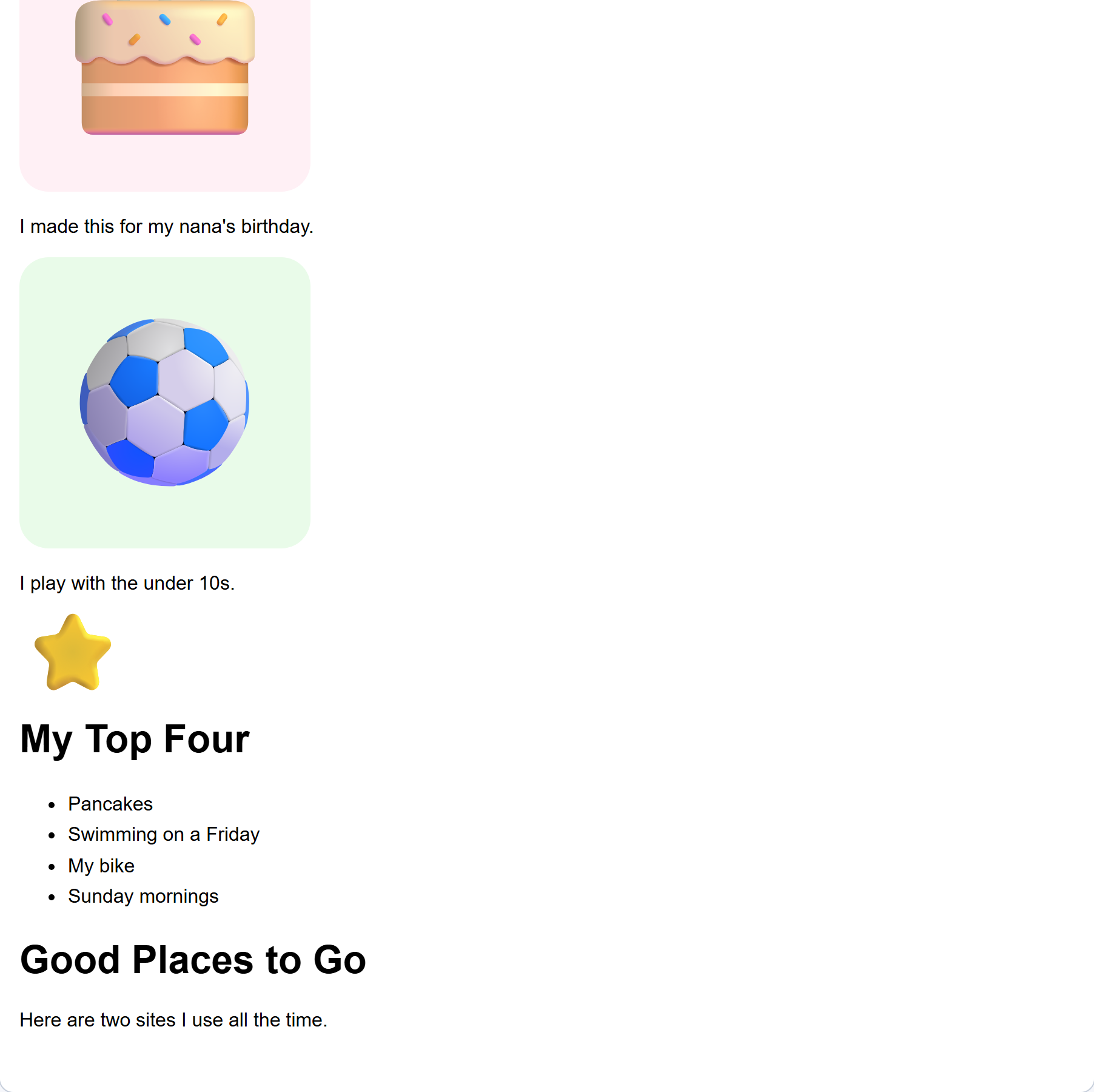
Quick and familiar. It also gives a reason for the links to exist, which is the difference between a page and a pile of addresses.
A link needs words before it needs an address.
This is the block you need:
{"blocks": {"languageVersion": 0, "blocks": [{"type": "wp_link", "fields": {"TEXT": "RTE Junior", "URL": "https://www.rte.ie/player/"}}]}}- Click Links and buttons on the left.
- Drag a link block under your sentence.
- In its first white box, type the name of the place, not click here.
- Click Your web page.
Check: the words are there, but the link does not go anywhere yet. That comes next.
Interactive activity
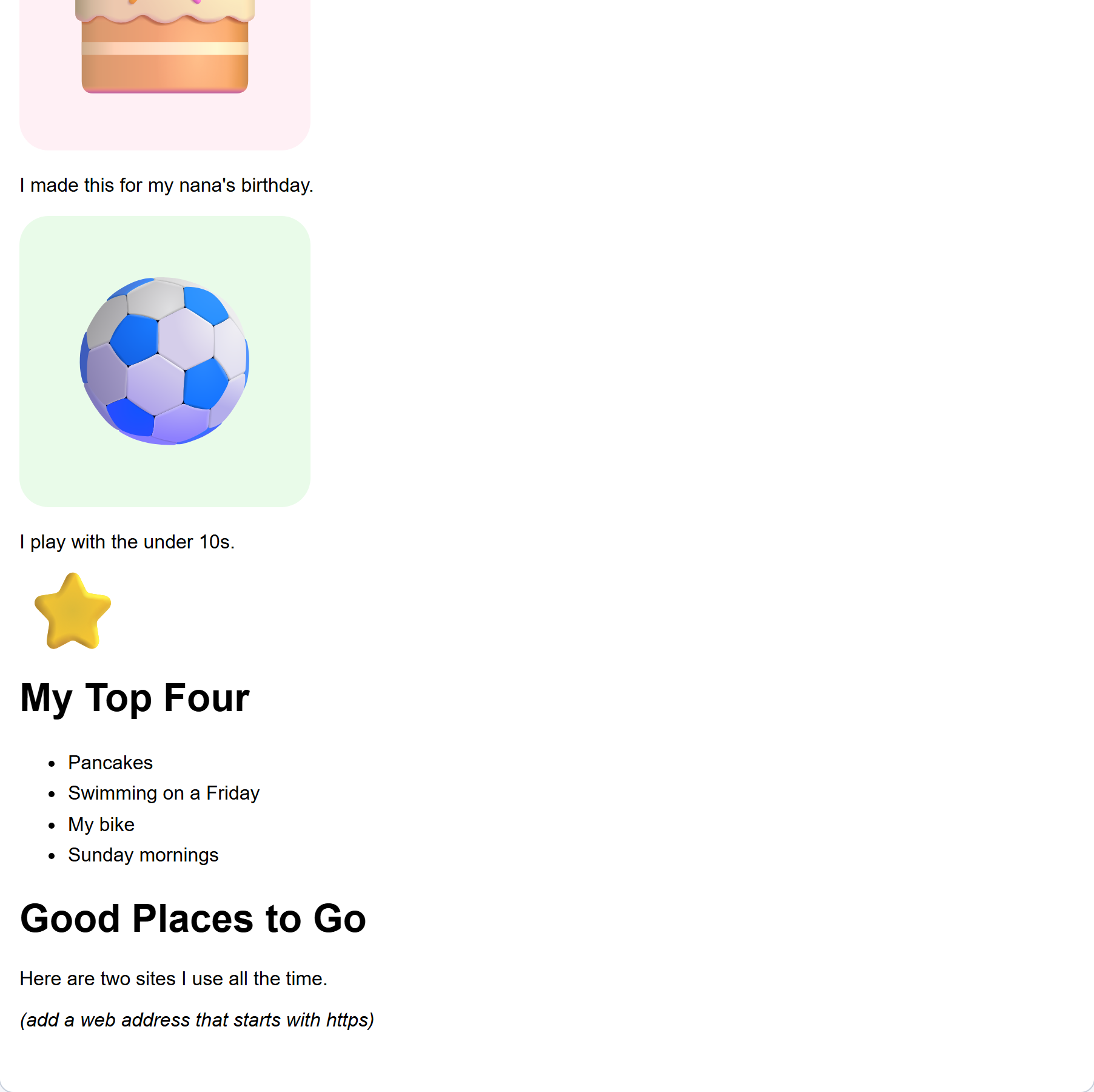
A different group on the left for the first time this lesson. Point at Links and buttons on the board before they go looking in Content.
Unlock the full learning experience
You're previewing this lesson. Get full access to this lesson and hundreds more — each one ready to teach, with interactive activities, printable resources and pupil progress tracking built in.
This lesson is copyright of DigitalSkills.org 2017 - 2025. Unauthorised use, copying or distribution is not allowed.