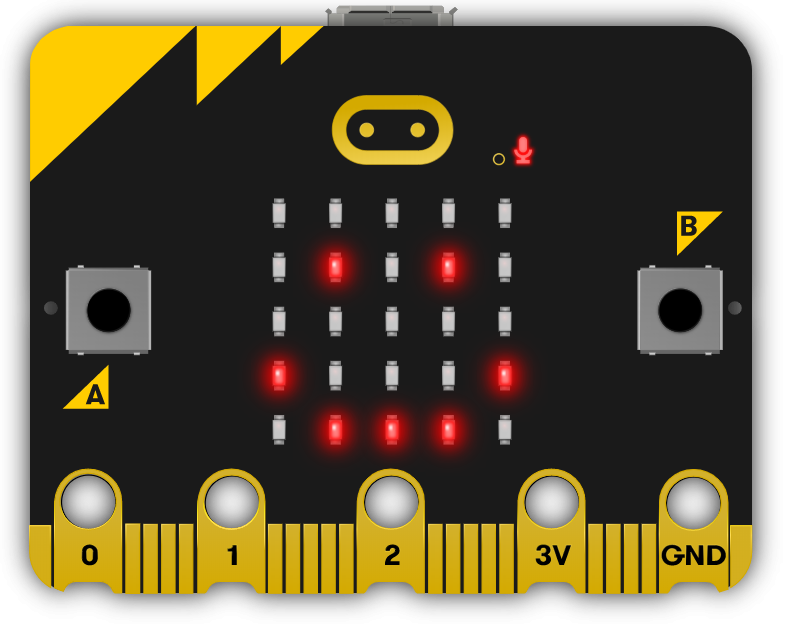
Microbit Artificial Intelligence
Beginner
60 mins
Teacher/Student led
+100 XP

What you need:
Chromebook/Laptop/PC
Microbit

MicroBit AI Lesson 2

In this lesson, you will create a Micro:Bit AI project and connect your device wirelessly. Design three wrist movements as spells, plus a "Still" state, and record 5-10 clean data samples for each. Train the AI model, test its recognition, code spell effects in MakeCode, download to your Micro:Bit, and trial your magic wand.
Learning Goals Learning Outcomes Teacher Notes

Teacher Class Feed

Load previous activity

    1 - Introduction

    2 - Create a new Microbit AI project

    To get started create a new Microbit AI project.

    https://createai.microbit.org/

    Select Get Started and New Session.

    3 - Connect your Micro:Bit

    Click the Connect Button along the bottom of the screen and follow the steps on screen to connect your Micro:Bit wirelessly to your device!

    4 - Designing Your Spells

    Today, we are turning your micro:bit into a Magic Wand using the power of Artificial Intelligence.

    A good wizard needs a variety of spells. While staying in your seat, decide on three distinct movements you can do with your wrist.

    For example, it might look like this:

    • Label 1: "The Zap" – A quick, sharp thrust forward.

    • Label 2: "The Halo" – A smooth, circular motion in the air.

    • Label 3: "The Shiver" – A fast, vibrating shake.

    Scientist's Note: You also need a "Still" label! This teaches the AI what it looks like when you are just sitting there doing nothing, so it doesn't cast spells by accident.

    5 - Gathering "Clean" Data

    The AI is only as smart as the data you give it. If your data is messy, your spells will fail!

        1. Create your firstaction/spell (e.g., The Zap).
        1. Hold the Record button and perform the gesture.
        1. Repeat this until you have at least 5 to 10 examples for every spell. The more samples you record, the more accurate it will be.
        1. Tip: Make sure your "Still" data includes you typing or just resting your hand on the desk.

    Unlock the Full Learning Experience

    Get ready to embark on an incredible learning journey! Get access to this lesson and hundreds more in our Digital Skills Curriculum.

    Copyright Notice
    This lesson is copyright of DigitalSkills.org 2017 - 2025. Unauthorised use, copying or distribution is not allowed.
    🍪 Our website uses cookies to make your browsing experience better. By using our website you agree to our use of cookies. Learn more