Makecode Arcade
Advanced
60 mins
Teacher/Student led
+55 XP

Finish, Test and Share

Pupils finish their Galaxy Ghosts game in MakeCode Arcade, test it against their original design brief, then share and explain one change they made along the way.
Teacher Class Feed

Load previous activity

    1 - What We're Building ~5 mins

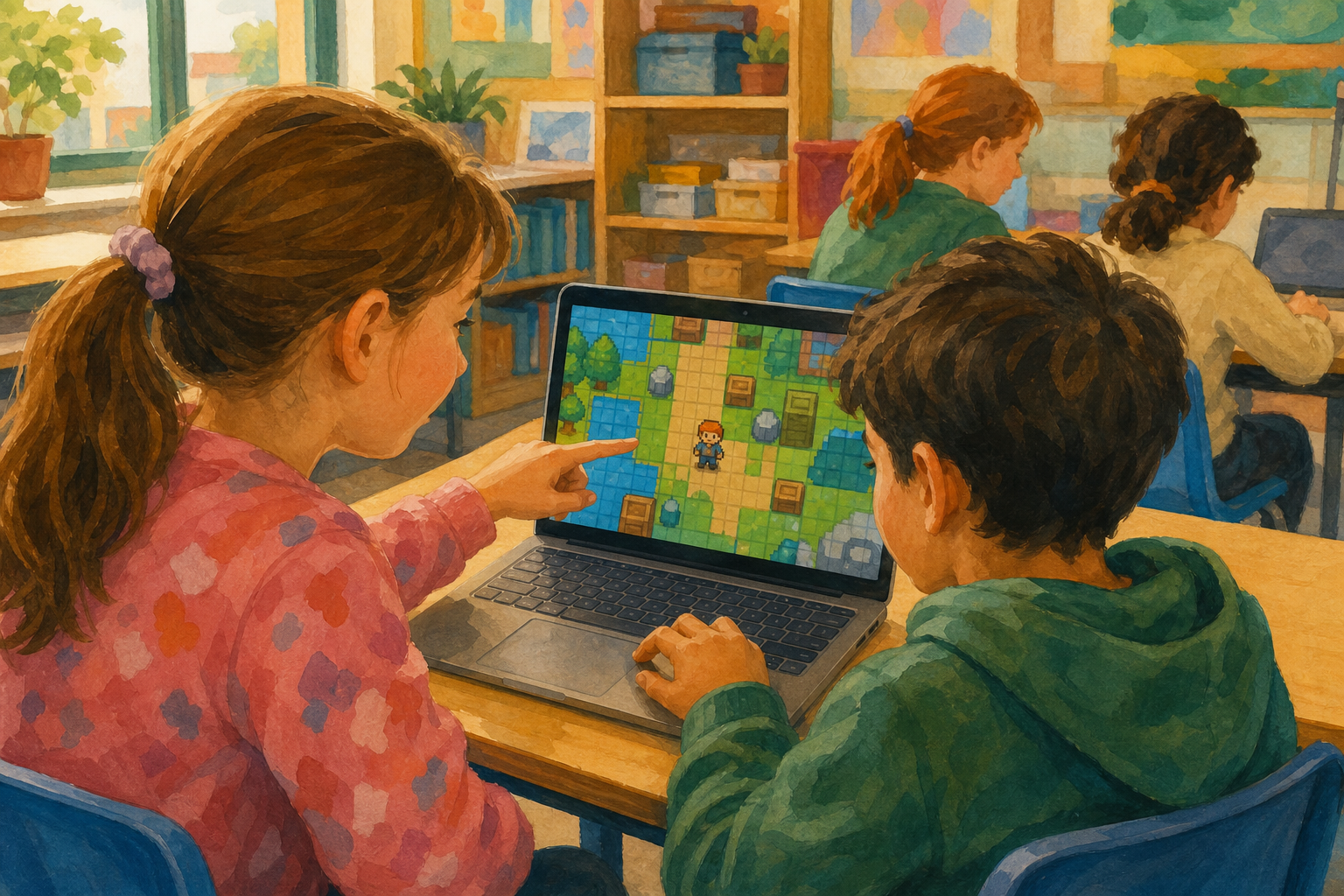
    Illustration for What we're buildingProgrammers rarely finish a build in one go — they add a piece, run it, test it against their plan, and fix what does not work. That's exactly what game studios do before they release anything. Today you build the last of your three games, Galaxy Ghosts, from a new project. When it runs, you test it against the design brief you planned at the start and share one thing you changed along the way. Watch the board as each piece is modelled, then try it on your own device and run it to see what happens.
    2 - Introduction to Galaxy Ghosts ~2 mins

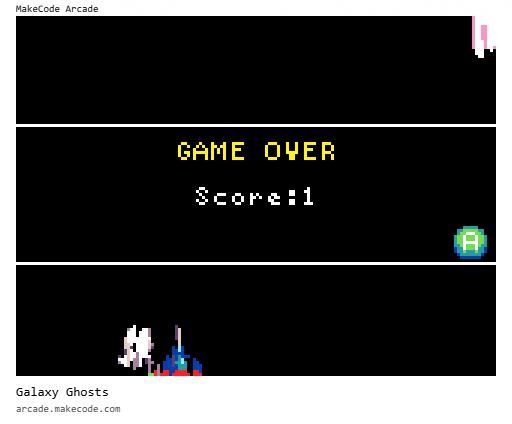
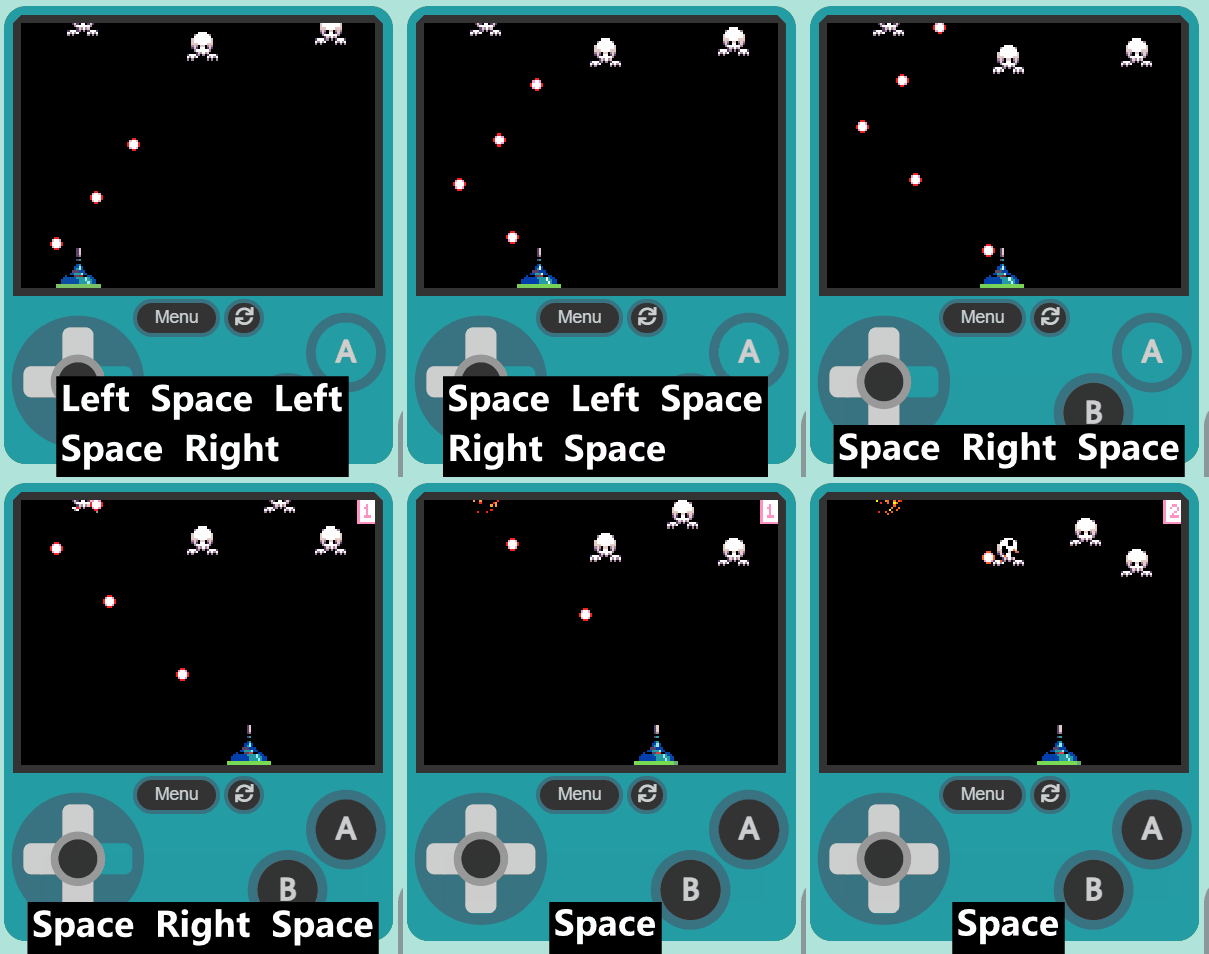
    Welcome to the Galaxy Ghosts lesson! In this lesson, we will be using MakeCode Arcade to create an exciting space-themed game. You will learn how to create and control a player sprite, generate enemy sprites, and program interactions between them. By the end of this lesson, you will have a fully functional game where your player sprite can shoot at the enemy sprites and earn points. Let's get started!


    3 - Start a New Project ~2 mins

    Tip

    Open the MakeCode Arcade website using the link below and create a new project. You can call the project whatever you want.

    https://arcade.makecode.com

    4 - Create Your Player ~3 mins

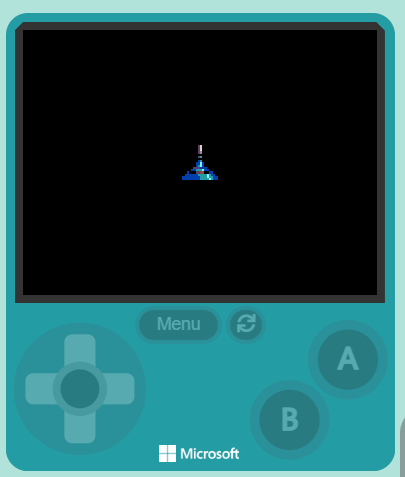
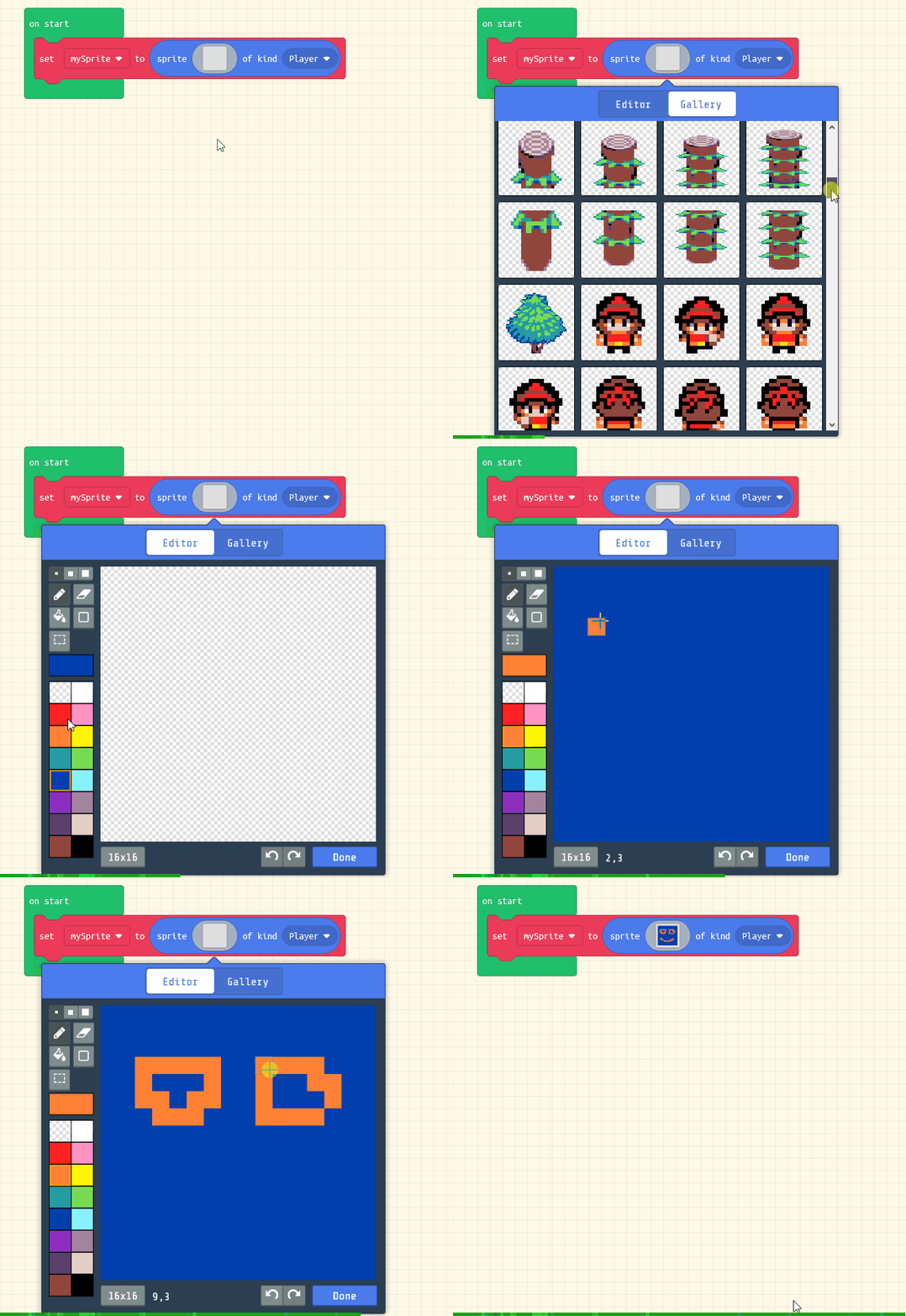
    First let's create our player sprite.

    Key point

    Add the following code and choose the blue space ship sprite:

    let mySprite: Sprite = null
    mySprite = sprites.create(img`
        . . . . . . . c d . . . . . . . 
        . . . . . . . c d . . . . . . . 
        . . . . . . . c d . . . . . . . 
        . . . . . . . c b . . . . . . . 
        . . . . . . . f f . . . . . . . 
        . . . . . . . c 6 . . . . . . . 
        . . . . . . . f f . . . . . . . 
        . . . . . . . 8 6 . . . . . . . 
        . . . . . . 8 8 9 8 . . . . . . 
        . . . . . . 8 6 9 8 . . . . . . 
        . . . . . c c c 8 8 8 . . . . . 
        . . . . 8 8 6 6 6 9 8 8 . . . . 
        . . 8 f f f c c e e f f 8 8 . . 
        . 8 8 8 8 8 8 6 6 6 6 9 6 8 8 . 
        8 8 8 8 8 8 8 8 6 6 6 9 6 6 8 8 
        8 8 8 8 8 8 8 8 6 6 6 6 9 6 8 8 
        `, SpriteKind.Player)
    

    5 - Move Left and Right ~5 mins

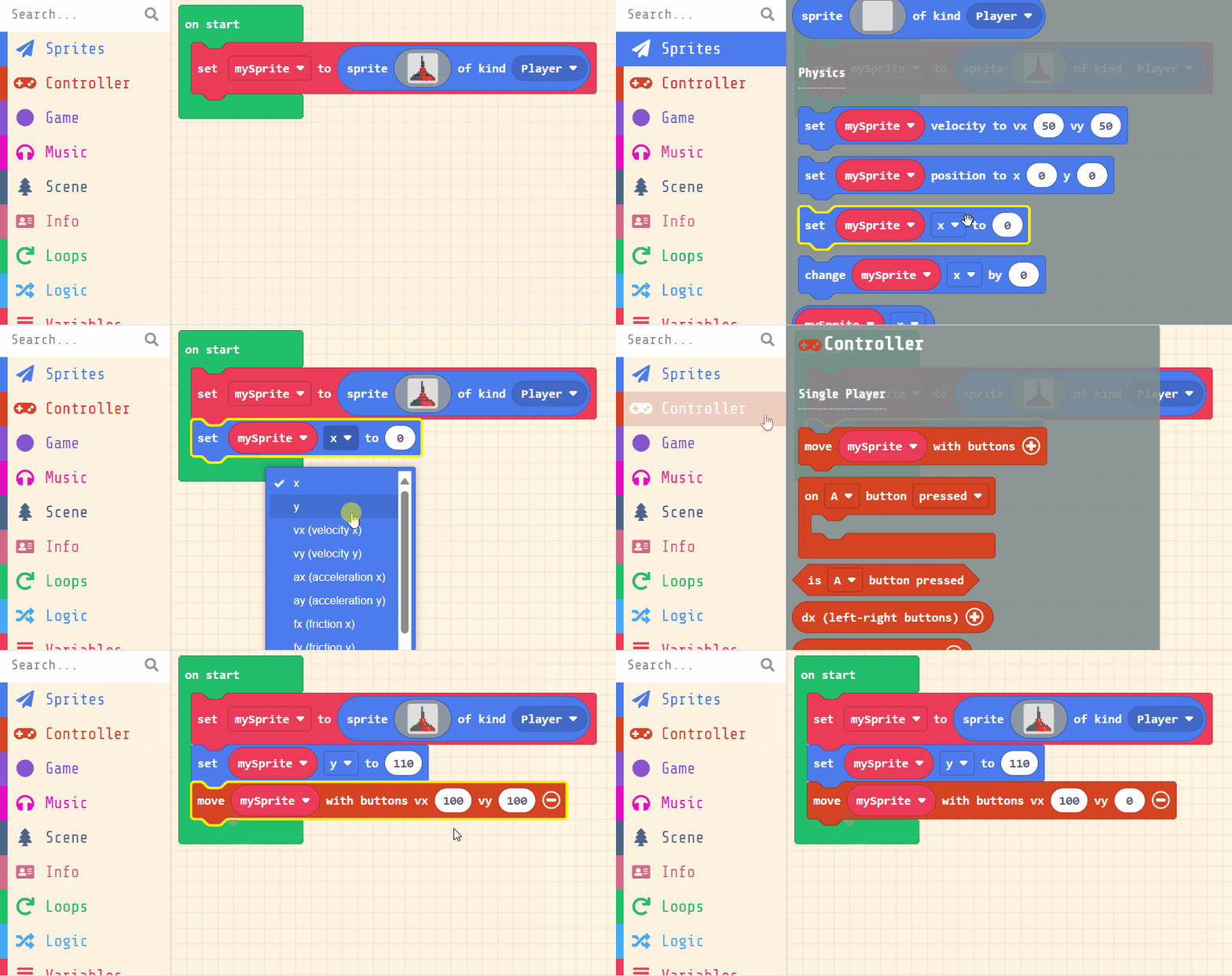
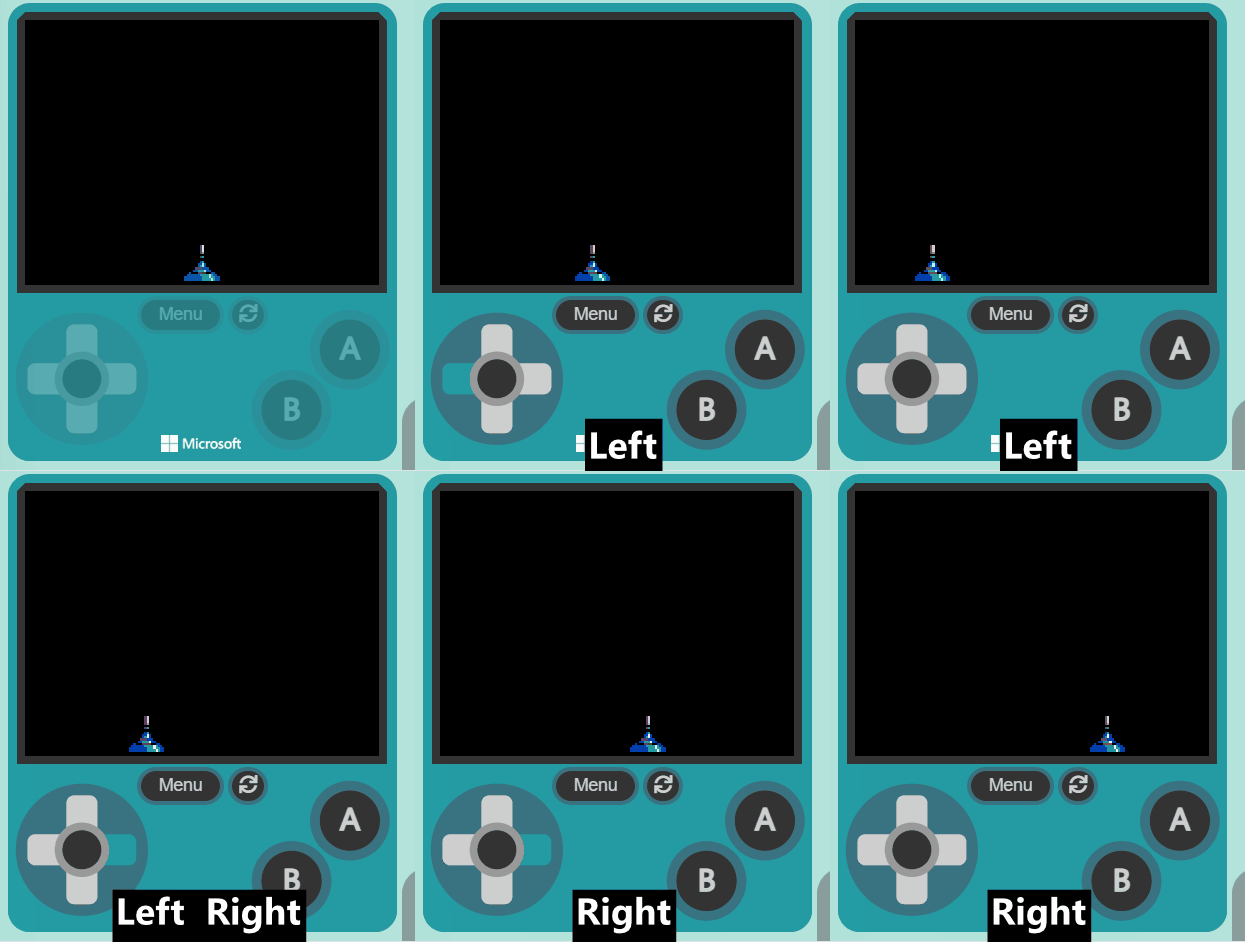
    We want to position the player sprite at the bottom of the screen and use the joystick (or arrow keys on your keyboard) to move it left and right.

    Add the following new code:

    let mySprite: Sprite = null
    mySprite = sprites.create(img`
        . . . . . . . c d . . . . . . . 
        . . . . . . . c d . . . . . . . 
        . . . . . . . c d . . . . . . . 
        . . . . . . . c b . . . . . . . 
        . . . . . . . f f . . . . . . . 
        . . . . . . . c 6 . . . . . . . 
        . . . . . . . f f . . . . . . . 
        . . . . . . . 8 6 . . . . . . . 
        . . . . . . 8 8 9 8 . . . . . . 
        . . . . . . 8 6 9 8 . . . . . . 
        . . . . . c c c 8 8 8 . . . . . 
        . . . . 8 8 6 6 6 9 8 8 . . . . 
        . . 8 f f f c c e e f f 8 8 . . 
        . 8 8 8 8 8 8 6 6 6 6 9 6 8 8 . 
        8 8 8 8 8 8 8 8 6 6 6 9 6 6 8 8 
        8 8 8 8 8 8 8 8 6 6 6 6 9 6 8 8 
        `, SpriteKind.Player)
    mySprite.y = 110
    controller.moveSprite(mySprite, 100, 0)
    
    Make sure you select y in the position block and put in a value of 110. This will make the sprite go to the bottom.

    Click the + on the move block and have values of vx 100 and vy 0. This means we can move the sprite left and right (vx) but not up and down (vy).
    Once you've added the code check to see that your space ship is at the bottom and you can move it left and right.


    Pupil practice · Investigation Journal
    Module 4 · Technology: a Coding Build, Micro:bit Data and Presenting Data
    Lesson 25 · Finish, Test and Share
    Download Investigation Journal sheet (PDF)
    DigitalSkills.org · Online learning platform

    Unlock the full learning experience

    You're previewing this lesson. Get full access to this lesson and hundreds more — each one ready to teach, with interactive activities, printable resources and pupil progress tracking built in.

    Hundreds of curriculum-aligned lessons
    Interactive activities in every lesson
    Printable resources & progress tracking
    Copyright Notice
    This lesson is copyright of DigitalSkills.org 2017 - 2025. Unauthorised use, copying or distribution is not allowed.
    🍪 Our website uses cookies to make your browsing experience better. By using our website you agree to our use of cookies. Learn more