Game designers don't finish a game in one go — they build a piece, run it, watch what happens and fix what's broken. That try-it-and-improve-it habit is exactly how real programmers work.
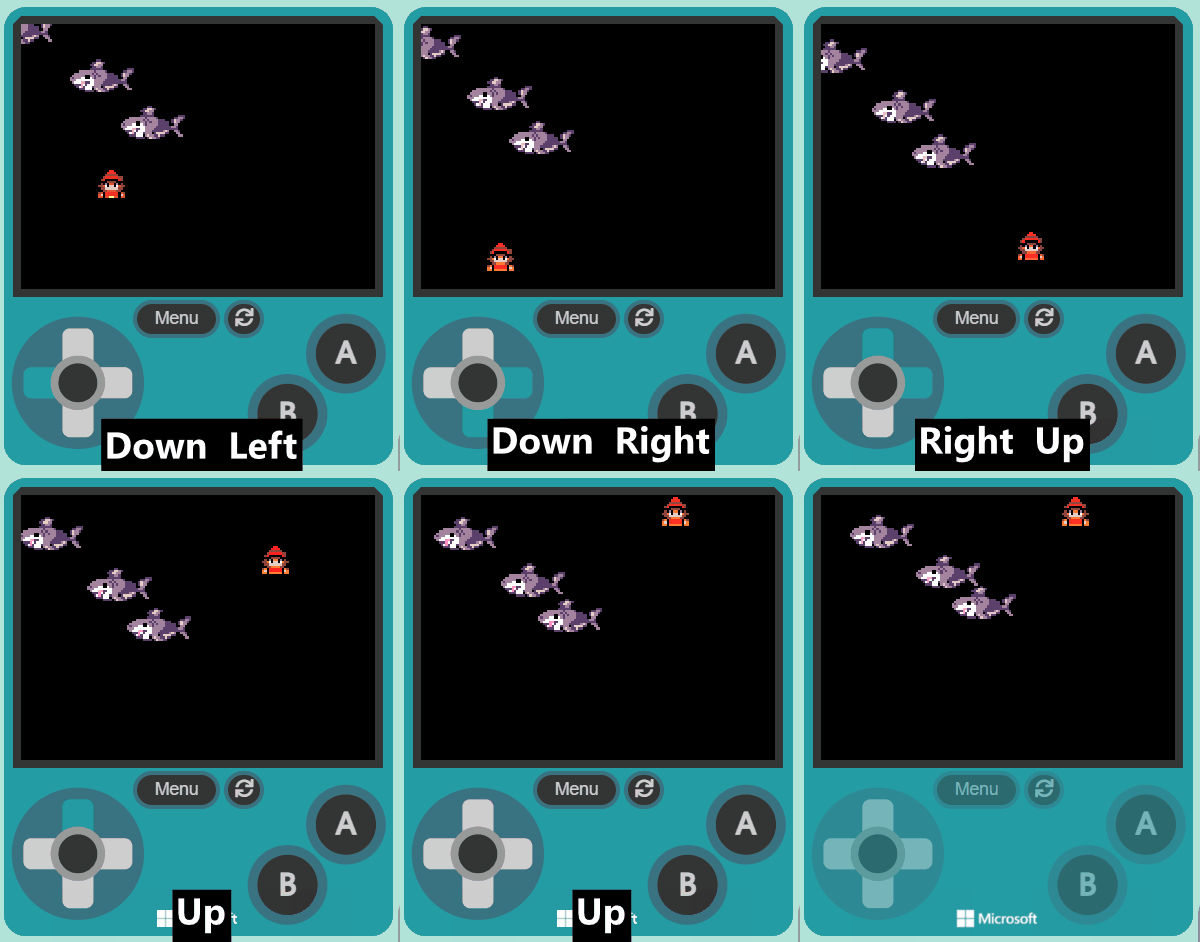
Today you'll build Shark Attack from a new project, start to finish. Watch the board first as each piece is modelled, then build it on your own device and press play to see what your code actually does.
Welcome to our exciting coding adventure! Today, we are going to create a fun game called 'Shark Attack'. In this game, you will control a character who needs to avoid the enemies that are chasing them. We will be using a platform called MakeCode Arcade to build our game. Don't worry if you haven't coded before, we will guide you through each step. Let's get started!
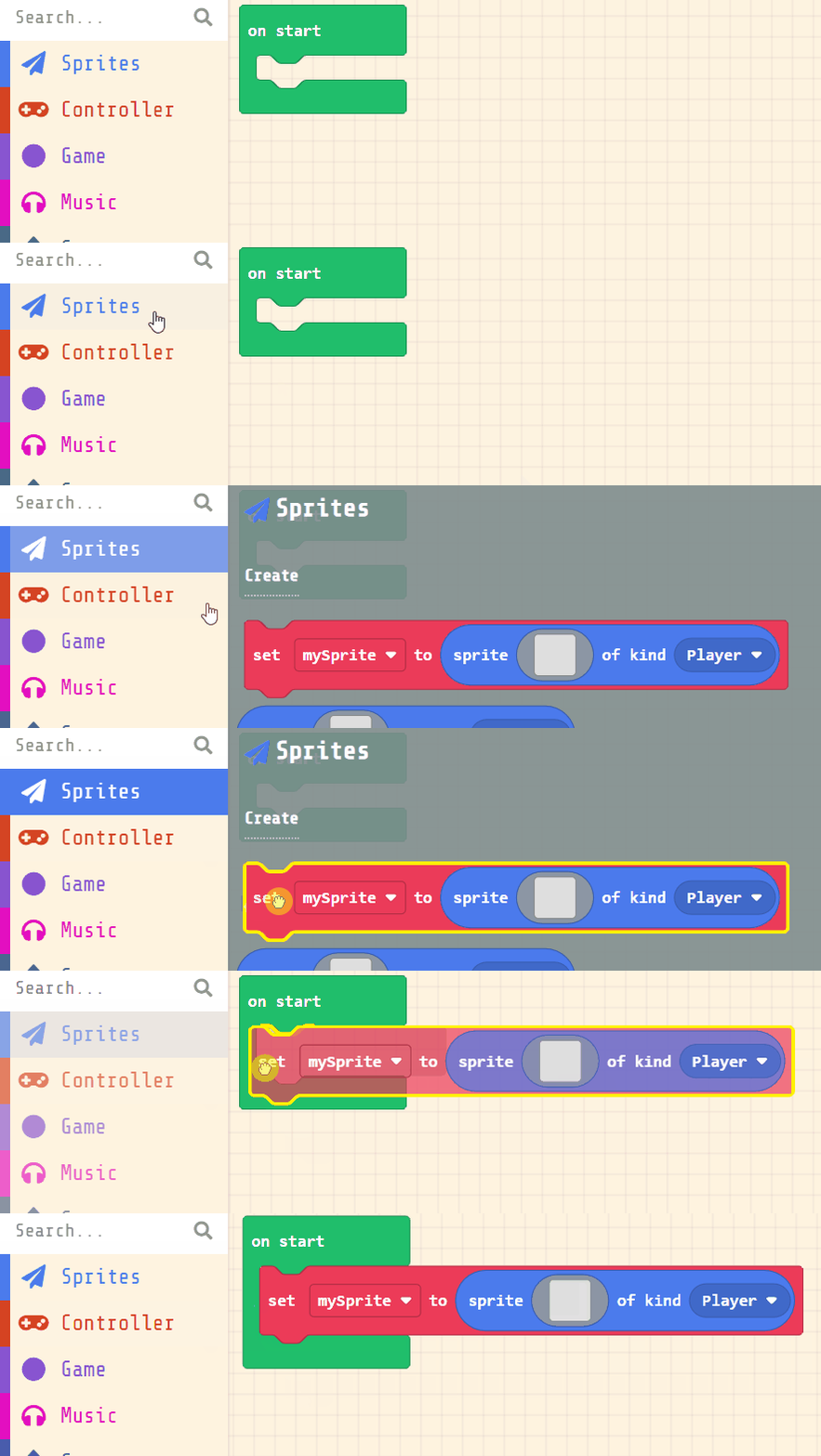
Open the MakeCode Arcade website using the link below and create a new project. You can call the project whatever you want.
Create a new Arcade project using the makecode.com website.
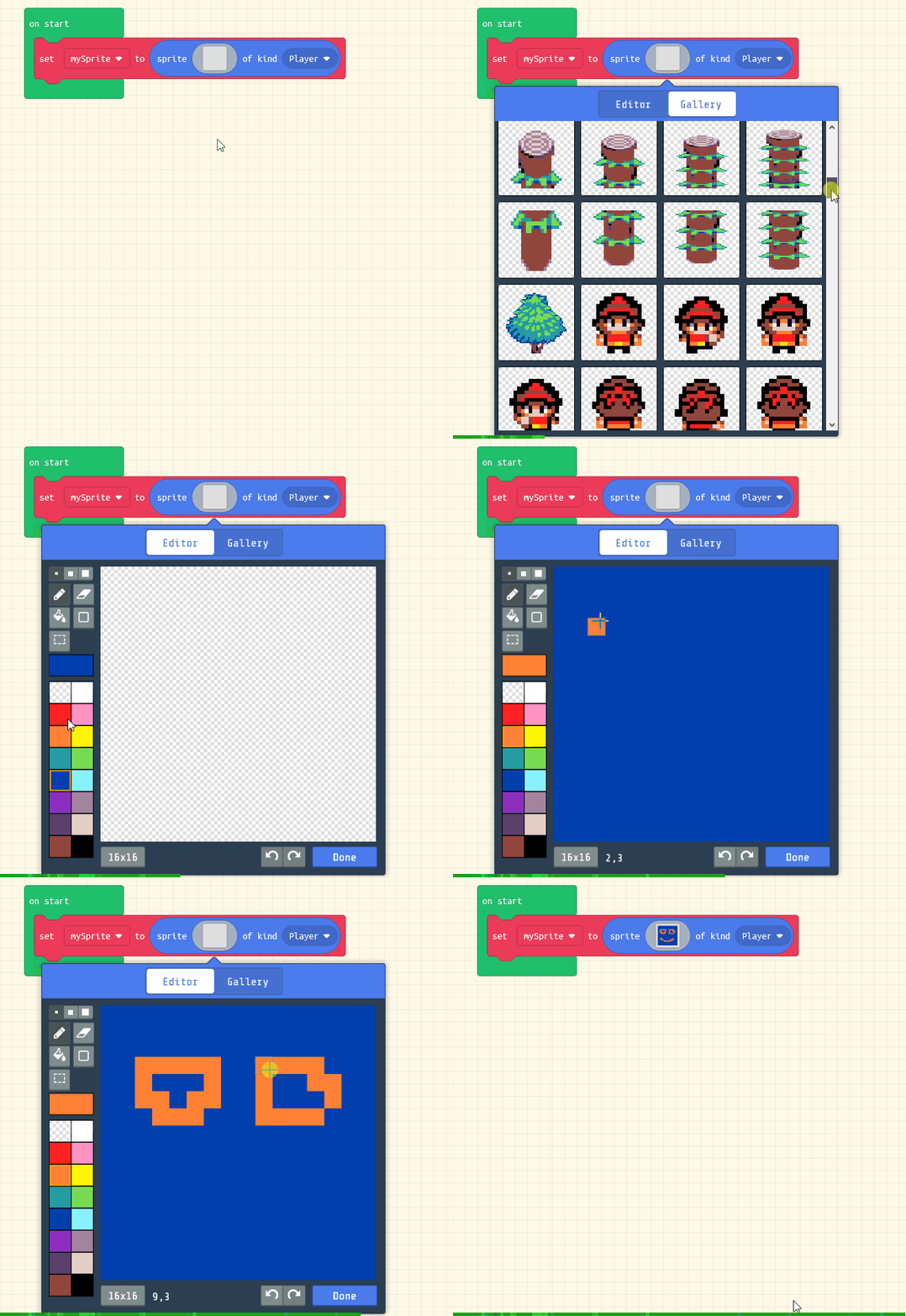
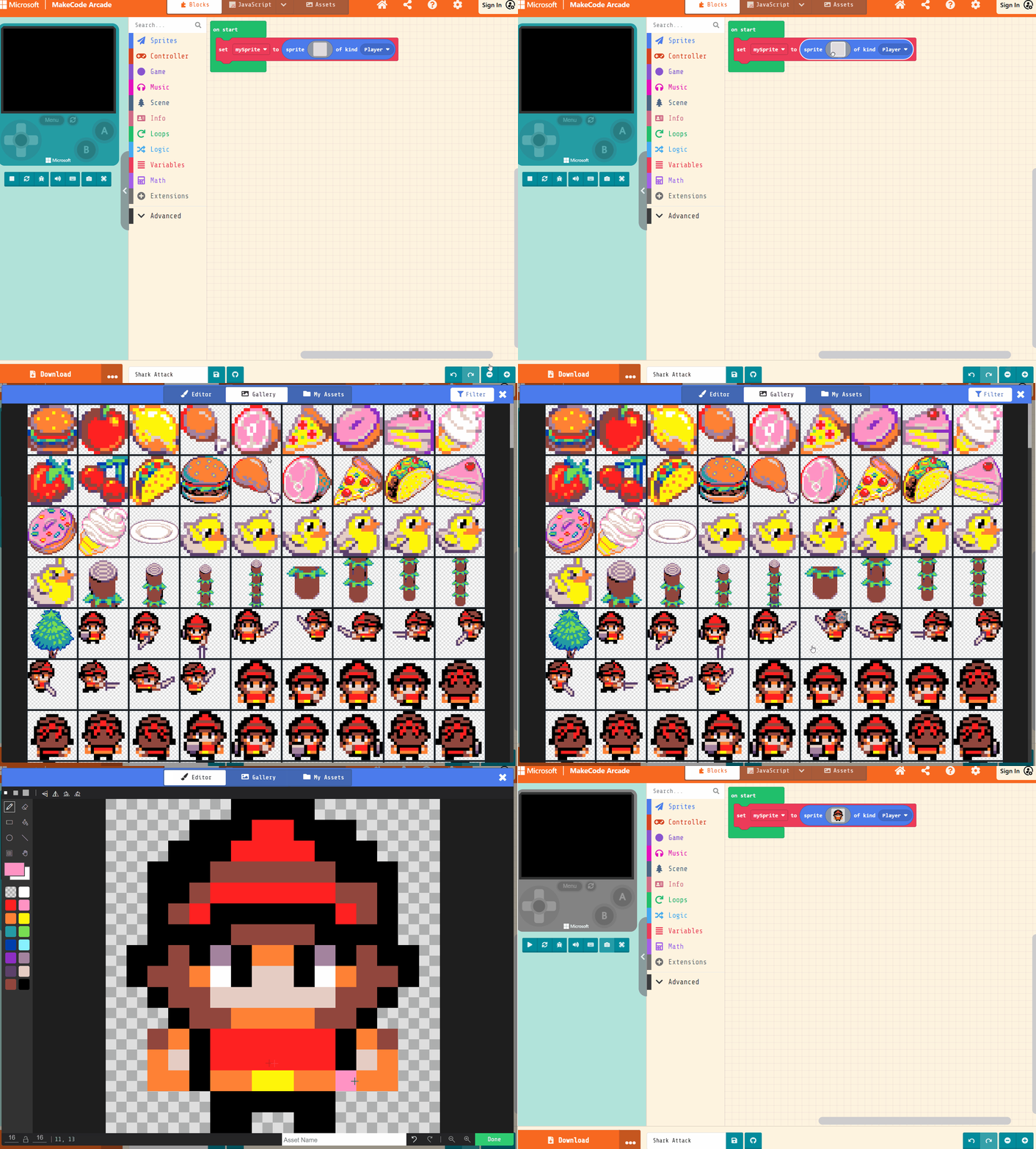
Next, you will create your player sprite. This is the character that you will control in the game. Add the following code:
let mySprite = sprites.create(img`...`, SpriteKind.Player)
Then click on the grey box and choose a sprite character from the gallery.
let mySprite = sprites.create(img`
. . . . . . f f f f . . . . . .
. . . . f f f 2 2 f f f . . . .
. . . f f f 2 2 2 2 f f f . . .
. . f f f e e e e e e f f f . .
. . f f e 2 2 2 2 2 2 e e f . .
. . f e 2 f f f f f f 2 e f . .
. . f f f f e e e e f f f f . .
. f f e f b f 4 4 f b f e f f .
. f e e 4 1 f d d f 1 4 e e f .
. . f e e d d d d d d e e f . .
. . . f e e 4 4 4 4 e e f . . .
. . e 4 f 2 2 2 2 2 2 f 4 e . .
. . 4 d f 2 2 2 2 2 2 f d 4 . .
. . 4 4 f 4 4 5 5 4 4 f 4 4 . .
. . . . . f f f f f f . . . . .
. . . . . f f . . f f . . . . .
`, SpriteKind.Player)
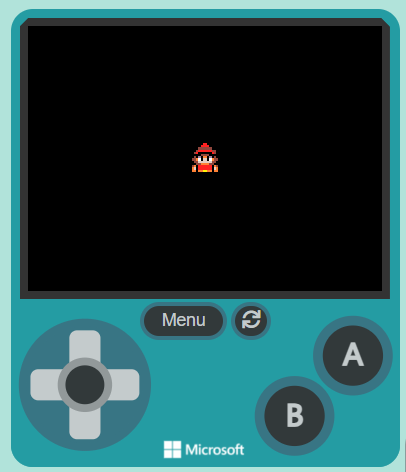
Click on the gray box in the sprite block to open the Editor. You can choose a sprite from the Gallery or you can paint your own sprite using the Editor.
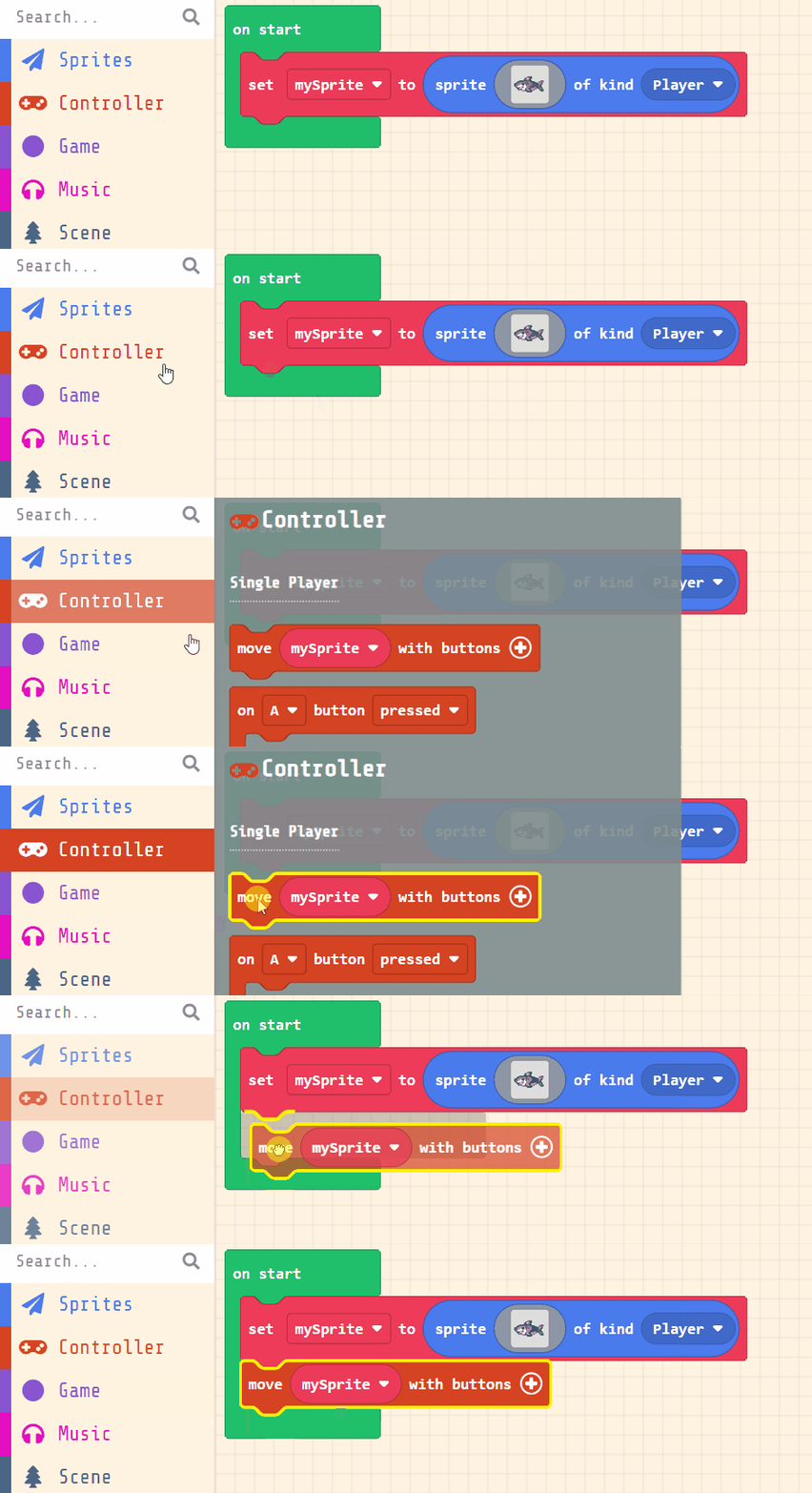
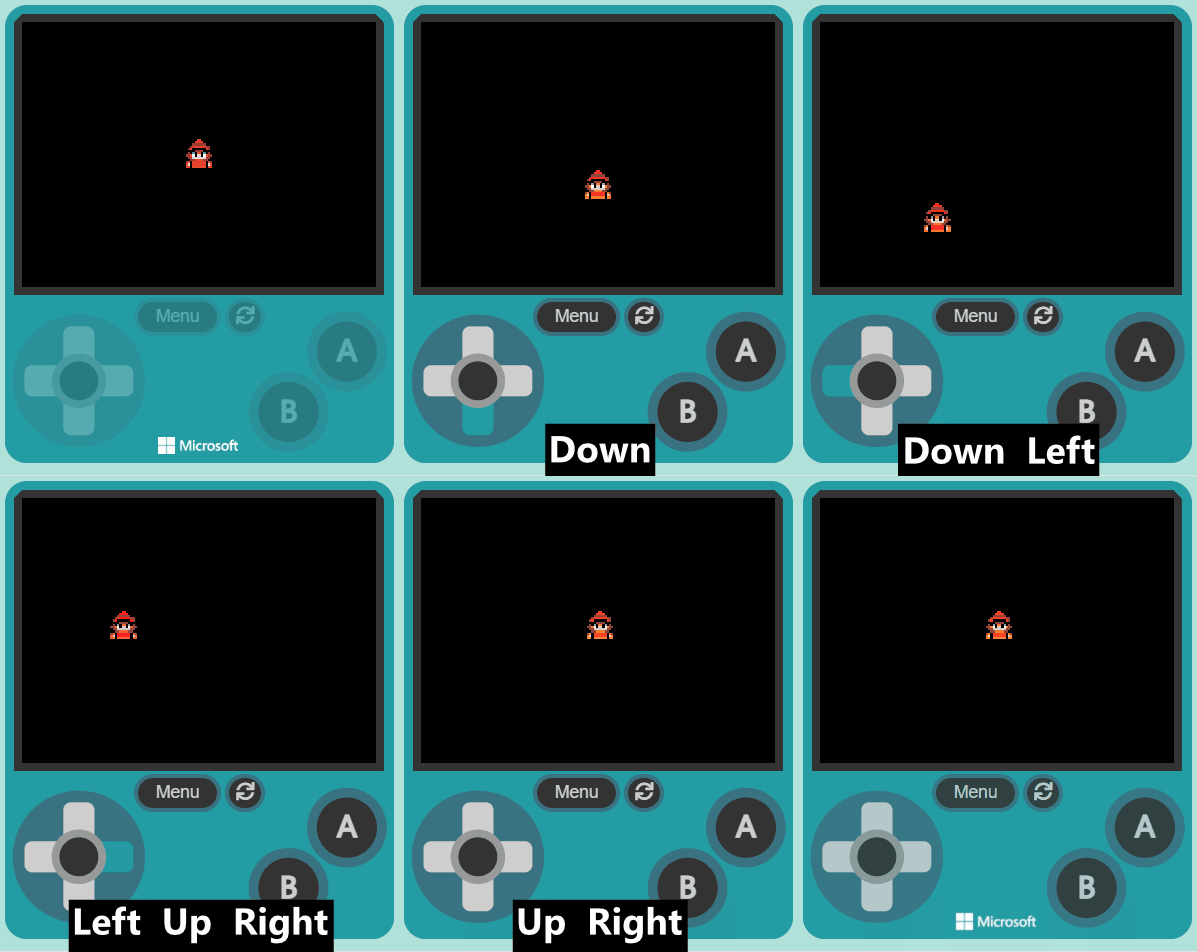
Now, let's make your sprite move using the joystick (or the arrow keys on your keyboard).
Add the following new code:
let mySprite = sprites.create(img`
. . . . . . f f f f . . . . . .
. . . . f f f 2 2 f f f . . . .
. . . f f f 2 2 2 2 f f f . . .
. . f f f e e e e e e f f f . .
. . f f e 2 2 2 2 2 2 e e f . .
. . f e 2 f f f f f f 2 e f . .
. . f f f f e e e e f f f f . .
. f f e f b f 4 4 f b f e f f .
. f e e 4 1 f d d f 1 4 e e f .
. . f e e d d d d d d e e f . .
. . . f e e 4 4 4 4 e e f . . .
. . e 4 f 2 2 2 2 2 2 f 4 e . .
. . 4 d f 2 2 2 2 2 2 f d 4 . .
. . 4 4 f 4 4 5 5 4 4 f 4 4 . .
. . . . . f f f f f f . . . . .
. . . . . f f . . f f . . . . .
`, SpriteKind.Player)
controller.moveSprite(mySprite)
You're previewing this lesson. Get full access to this lesson and hundreds more — each one ready to teach, with interactive activities, printable resources and pupil progress tracking built in.