Your page has plenty of words on it now. Today it gets pictures.
You are going to build a new part at the bottom of your page:
- a heading that names the new part
- three pictures you choose
- words under each picture saying what it is
- a sticker to finish it
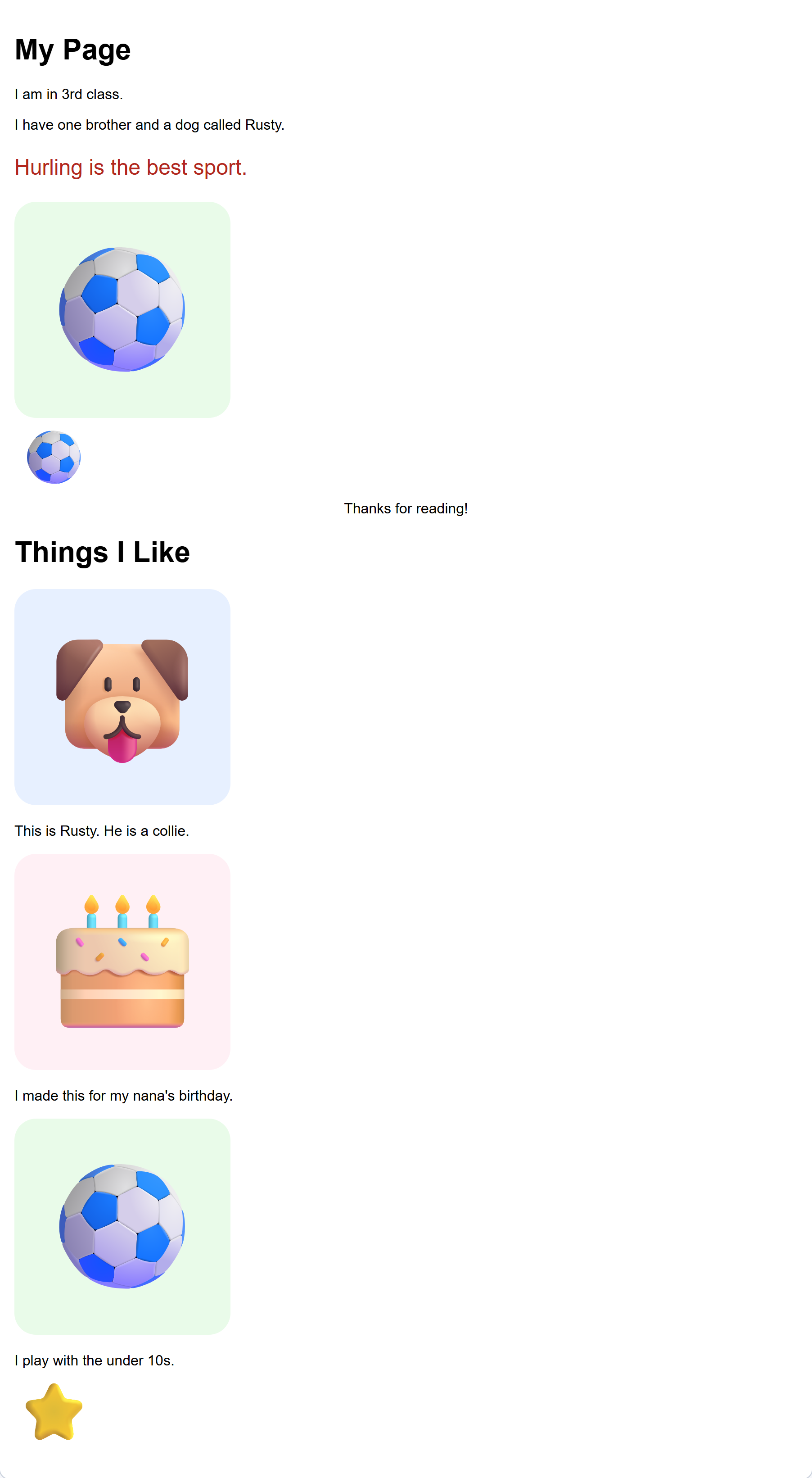
The picture on this step is what the new part looks like when it is finished. Show it and say this is where we are going.
This is the biggest build of the module, seven or eight blocks, but it is the same two blocks over and over. Pupils get faster each time round.
A picture with no words is a puzzle. Nobody knows why you put it there.
So every picture on your page gets a sentence under it, saying what it is or why you picked it.
Picture, then words. Picture, then words.
Say it once and start building. The pattern is the whole lesson, so it is worth naming out loud before the first drag: picture, then words.
Your pictures need a part of the page to live in.
This is the block you need:
{"blocks": {"languageVersion": 0, "blocks": [{"type": "wp_heading", "fields": {"TEXT": "Things I Like", "COLOUR": "default", "SIZE": "normal", "ALIGN": "left"}}]}}- Click Content on the left.
- Scroll to the bottom of your blocks.
- Drag a heading block to the very bottom.
- Click its white box and type something like Things I Like.
Check: your new heading is at the very bottom of the page, under everything else.
Interactive activity
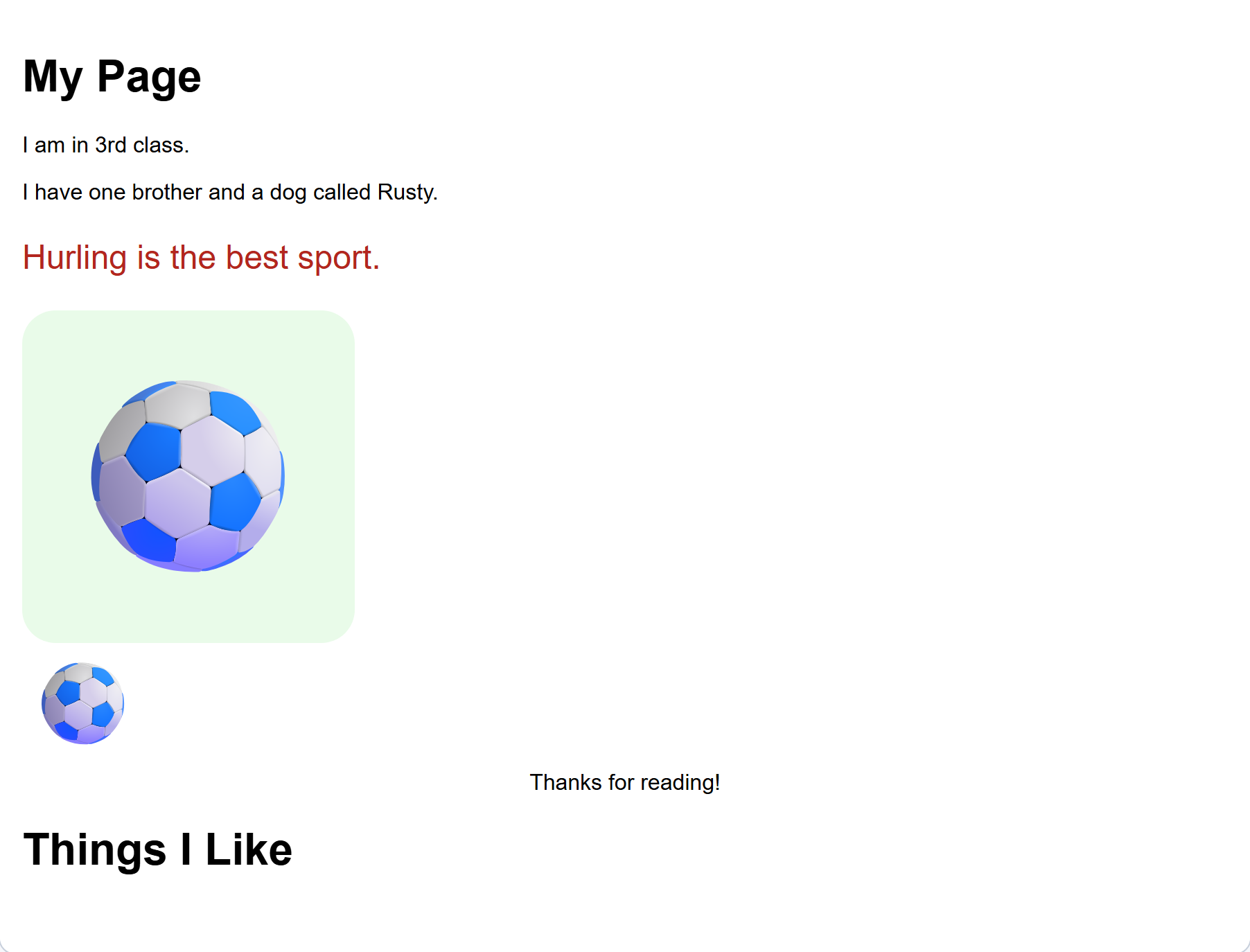
A second heading on the same page is fine and normal. It splits a long page into parts.
The drop target is at the bottom of the blocks, so a few pupils will need to scroll the blocks area. Model that once.
Your first picture goes under that new heading.
This is the block you need:
{"blocks": {"languageVersion": 0, "blocks": [{"type": "wp_picture", "fields": {"IMG": "dog"}}]}}- Click Content.
- Drag a picture block under your new heading.
- Pick a picture from its drop-down.
- Click Your web page.
Check: your picture is under the new heading. Pick one that means something to you.
Interactive activity
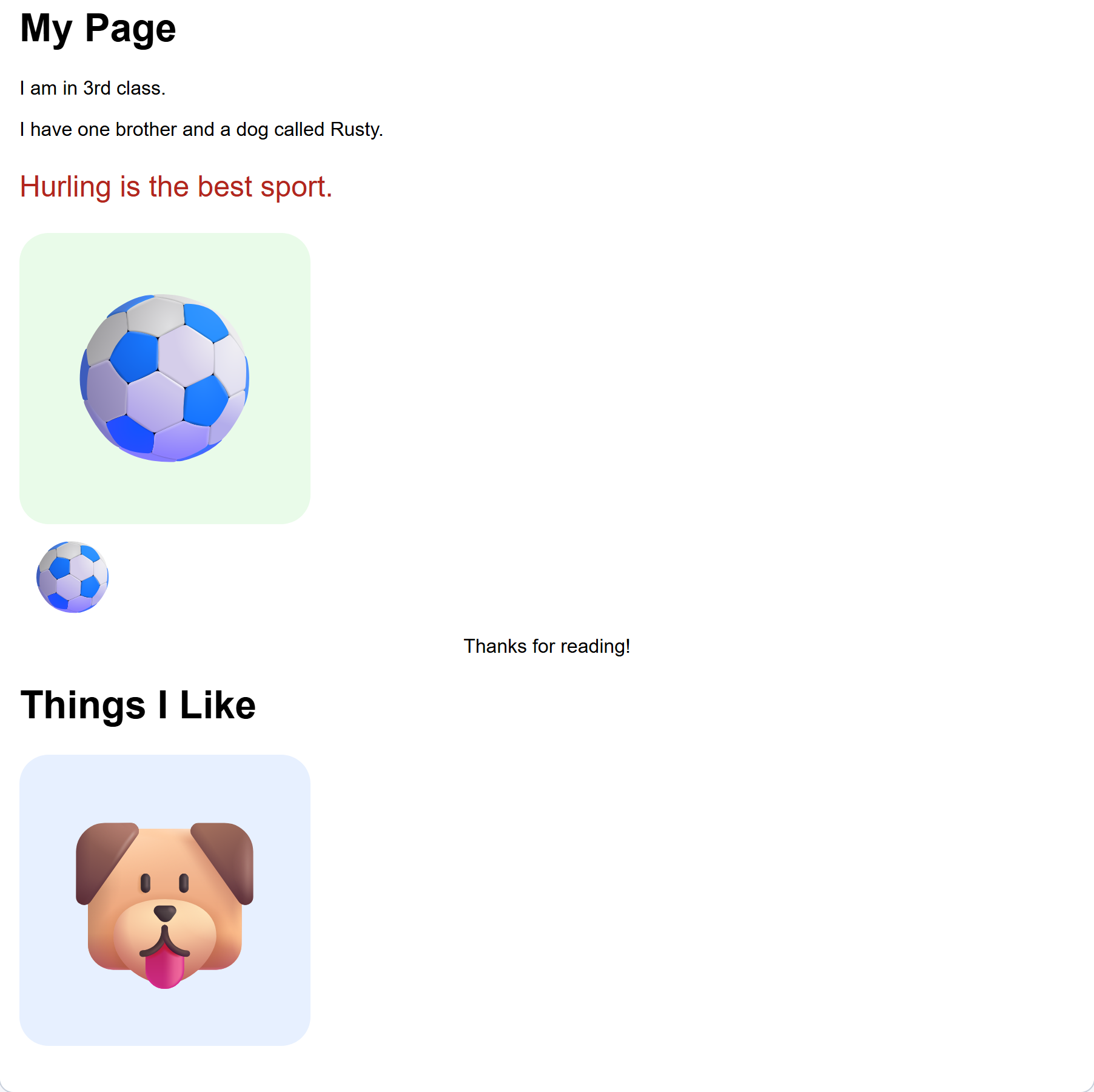
The pictures are built in and picked from a drop-down, so nobody is uploading anything or searching the internet.
Expect the choosing to take longer than the dragging. Give it a minute, then call time. They can change it later.
A picture with no words is a puzzle. Give it some.
This is the block you need:
{"blocks": {"languageVersion": 0, "blocks": [{"type": "wp_text", "fields": {"TEXT": "This is Rusty. He is a collie.", "COLOUR": "default", "SIZE": "normal", "ALIGN": "left"}}]}}- Click Content.
- Drag a text block under the picture.
- Write one sentence saying what it is, or why you chose it.
- Click Your web page.
Check: your sentence sits under the picture. Picture, then words. That is the pattern for the rest of the lesson.
Interactive activity
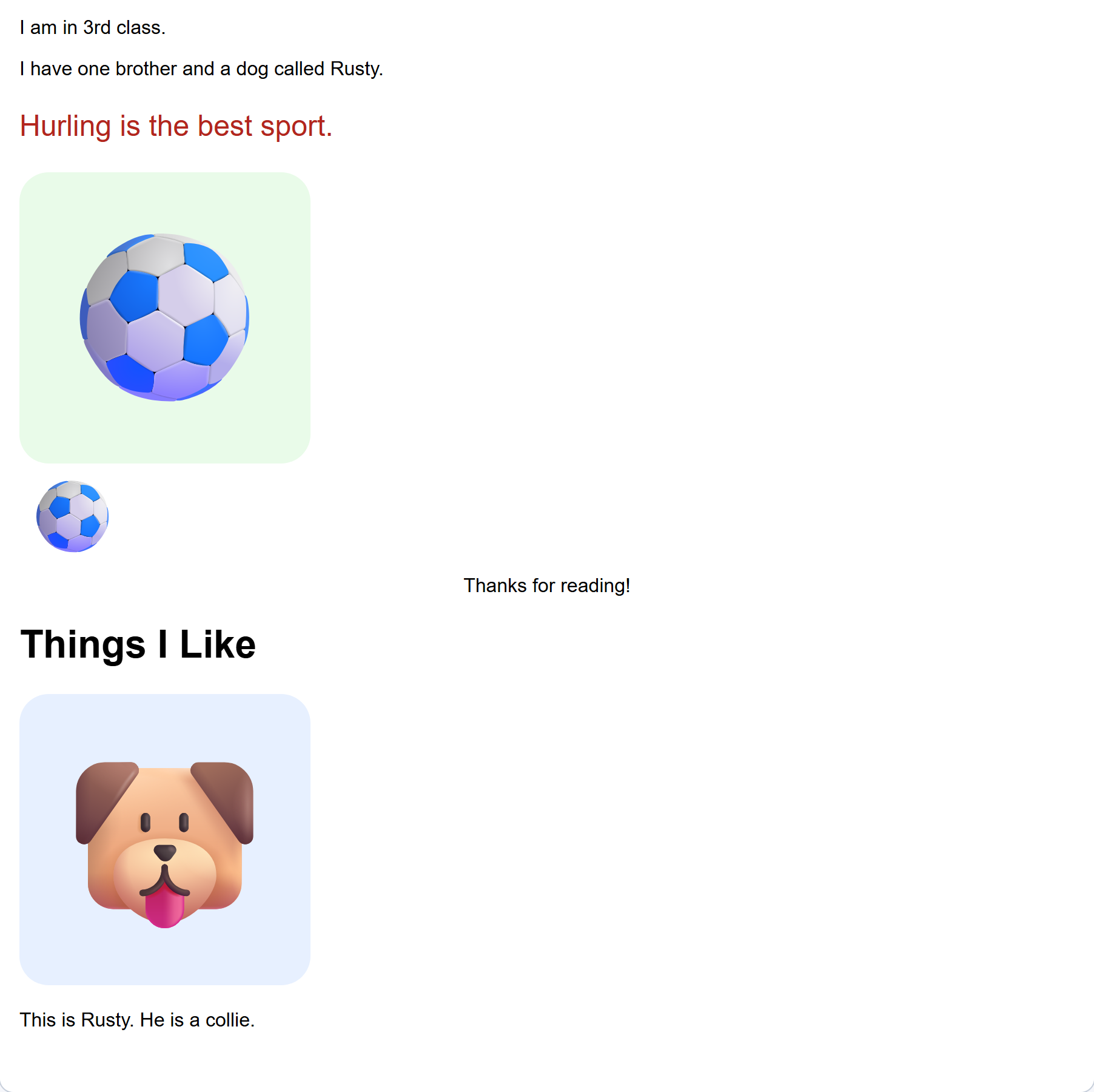
The sentence goes under the picture, not above it. If a pupil snaps it in the wrong place they can drag it again; nothing breaks.
Unlock the full learning experience
You're previewing this lesson. Get full access to this lesson and hundreds more — each one ready to teach, with interactive activities, printable resources and pupil progress tracking built in.
This lesson is copyright of DigitalSkills.org 2017 - 2025. Unauthorised use, copying or distribution is not allowed.